
Invite members and manage roles
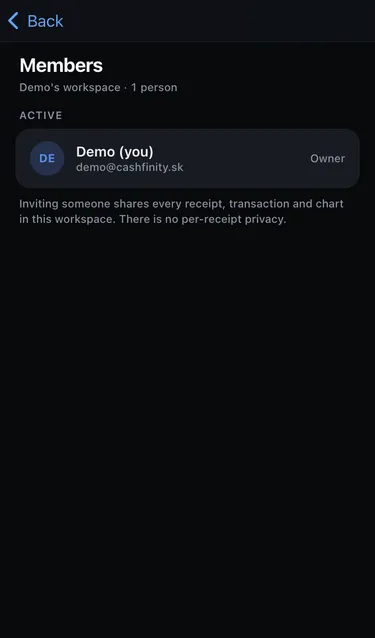
Open Settings → Switch → Edit workspace → Members.
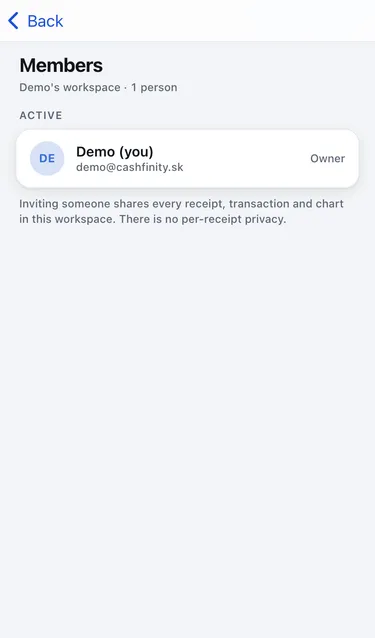
| Role | Can do |
|---|---|
| Member | Add and edit receipts, transactions, categories, labels and rules. |
| Owner | Everything a member can, plus rename the workspace, change its currency, invite and remove people, export data and delete the workspace. |
A workspace always needs at least one owner.
Invite someone
Section titled “Invite someone”- On Members, tap Invite.
- Enter their Email and choose a Role.
- Tap Send invite.
They get an email with a link. If they don’t have a Cashfinity account yet, the link takes them through sign-up first. Then they tap Accept invitation.
Only owners can invite people. Invites expire after 7 days.
Manage pending invites
Section titled “Manage pending invites”Pending invites are listed under Invited. Tap one to:
- Resend invite,
- Copy invite link, to send it another way,
- Revoke invite.
Change a role or remove someone
Section titled “Change a role or remove someone”Tap a member, then Change role or Remove from workspace. A removed member loses access straight away. Receipts they added stay in the workspace.
If you received an invite
Section titled “If you received an invite”Open the link from the email. You see who invited you and with which role. Tap Accept invitation to join, or Decline.
- This invite is for someone else: you are signed in with a different email than the invite was sent to. Tap Sign out and continue and sign in with the invited address.
- This invite has expired or This invite was revoked: ask the person who invited you to send a new one.