
Categorization rules
A rule says “items like this go into this category, with these labels”. Rules are checked before AI, so they are the most reliable way to get items sorted the way you want.
Go to Settings → Categorization rules.
Three ways to match
Section titled “Three ways to match”| Match type | Matches when… | Example |
|---|---|---|
| Item name (exact) | the whole line equals the pattern | Rožok → Grocery, Bread |
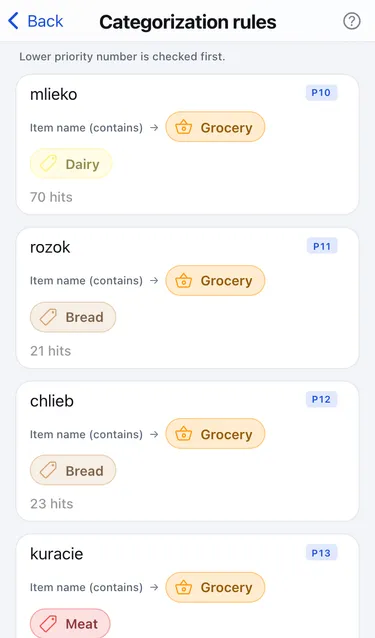
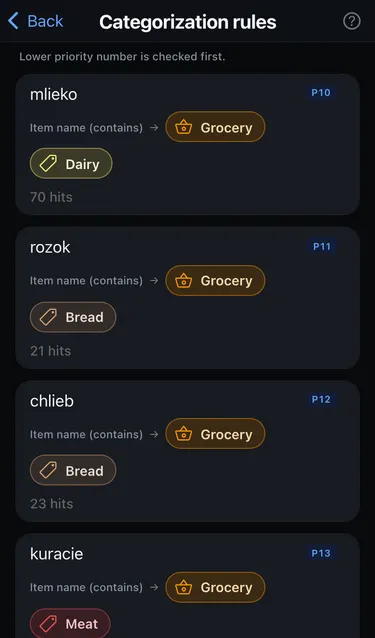
| Item name (contains) | the pattern appears anywhere in the line | mlieko matches “Mlieko 1,5 %” → Grocery |
| Merchant IČO | the item comes from a company with that ID | every item from a petrol station → Fuel |
Create a rule
Section titled “Create a rule”- Tap + New rule.
- Choose the Match type and enter the Pattern.
- Choose the Category and, optionally, Labels.
- Set the Priority. A lower number is checked first.
- Tap Create.
Priority and hits
Section titled “Priority and hits”When several rules match an item, the one with the lowest priority number wins. Each rule shows how many items it has categorized so far, for example 70 hits.
Edit or delete a rule
Section titled “Edit or delete a rule”Tap a rule to change it and tap Save, or tap Delete to remove it. Items it already sorted keep their category. New items are no longer matched by it.